Initial Use of CoMapeo Mobile
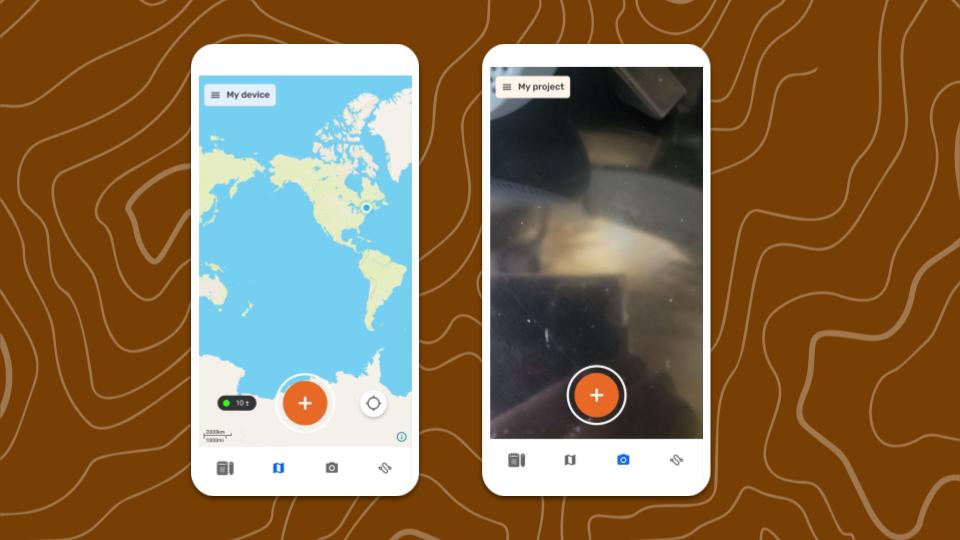
The primary view CoMapeo is the  Map view with access to mapping features and the main menu. This is serves as the home screen when restarting CoMapeo onboarding is complete.
The map controls include  recenter,
  slide-to-pan, and pinch-to-zoom with a dynamic scale. Real time GPS sensor information can be viewed in
  GPS Details.
Features to Explore first
✔️ Map screen
✔️  Camera screen
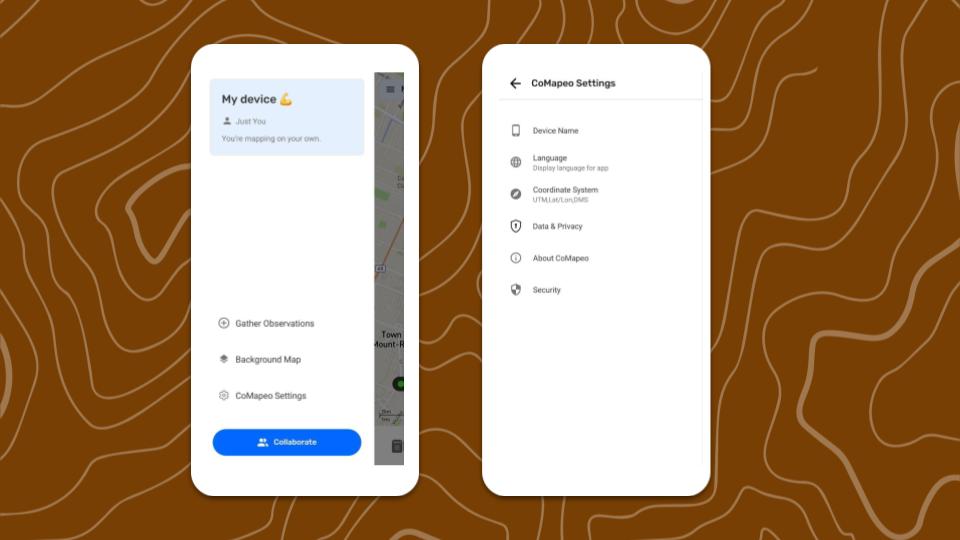
✔️  Main Menu
✔️  CoMapeo Settings
Features and Resources to Explore Next
✔️ Go to 🔗 Creating a New Observation
✔️ Go to 🔗 Exploring the Observations List
✔️ Go to 🔗 Creating a New Track
✔️ Go to 🔗 Organizing Key Materials for Projects
✔️ Go to 🔗 Inviting Collaborators
Included Categories Set
Categories are the primary way people identify and related to information collected when mapping and monitoring. CoMapeo Mobile v8 includes an updated Categories Set that better represents the things being documented by communities and teams in areas where environmental and territorial threats are happening. Each category includes additional details that can be filled in to improve quality of observations
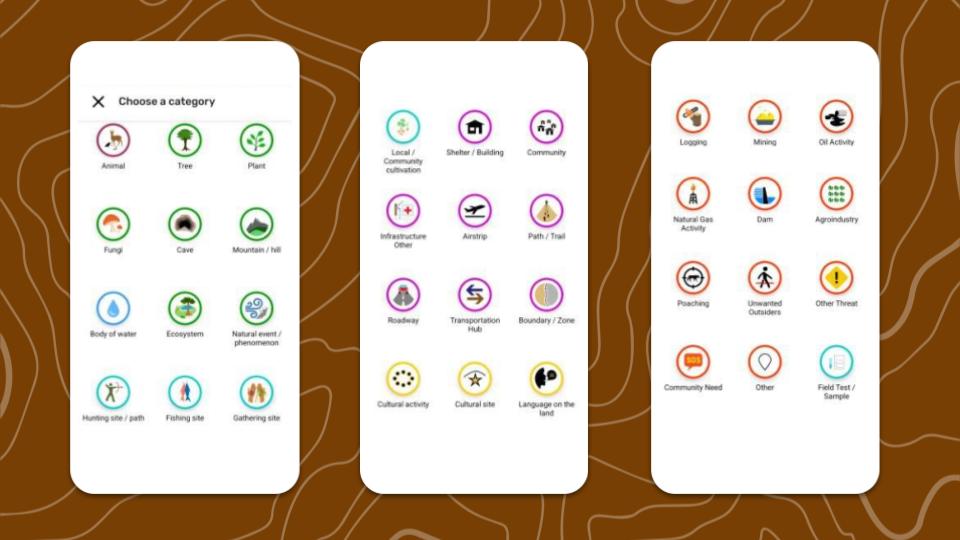
💡 Tip: The easiest way is to explore the categories is in CoMapeo Mobile while creating new observations.
CoMapeo Settings
 Device Name
The only way to change a device name for use in CoMapeo is to use that same device. Device names are displayed in CoMapeo collaboration features like inviting teammates to join a project and viewing teammates in a project.
 Language
Language options available may include languages with anywhere between 1% and 100% translations.
 Coordinate System
Choose one of the following options:
💡 Tip: Select the
 Data & Privacy
Choose to opt in or opt out of sharing diagnostic data.
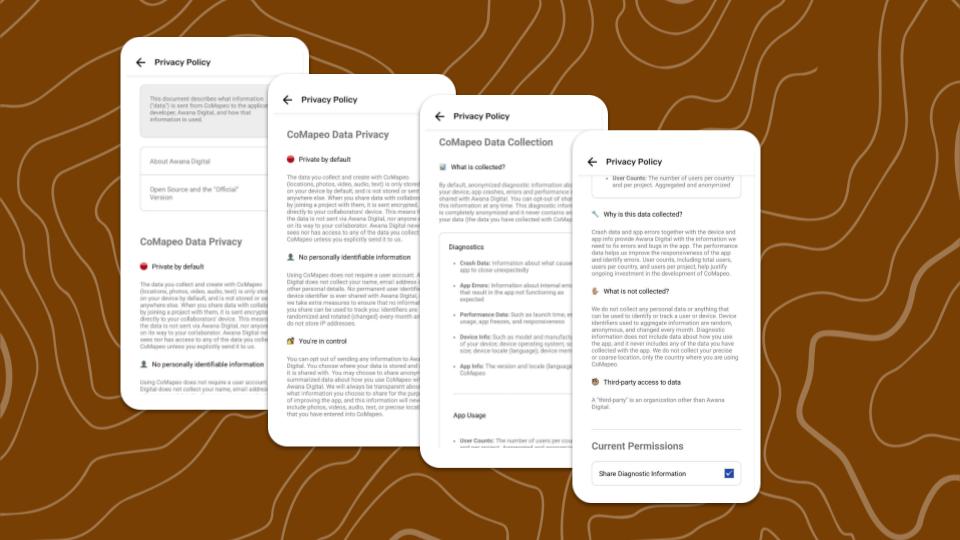
Go to 🔗CoMapeo Data & Privacy to review the Privacy Policy in English
 About CoMapeo
View app version number and more details that may help with diagnostics when accessing technical support from the CoMapeo Help team.
 Security
Security tools to aid with physical security threats.
Go to 🔗 Using an App Passcode for Security
Related Content
Go to 🔗 Initial Use & CoMapeo Settings
Go to 🔗 Uninstalling CoMapeo