Device Setup & Maintenance for CoMapeo
Why is it important to maintain my device?
Looking after your mobile device or computer to keep it well maintained helps it stay fast, secure, and free from performance issues.
💡 Tip: Consider carrying out the steps below to optimize your smartphone for using CoMapeo.
🚧 Recommendations for computers and use of CoMapeo Desktop coming soon
Setting up your device to use CoMapeo Mobile
Here you will learn what to do on your  Android smartphone or tablet phone (outside of CoMapeo) to get the best performance from it as you start to use it.
✔️ Checklist
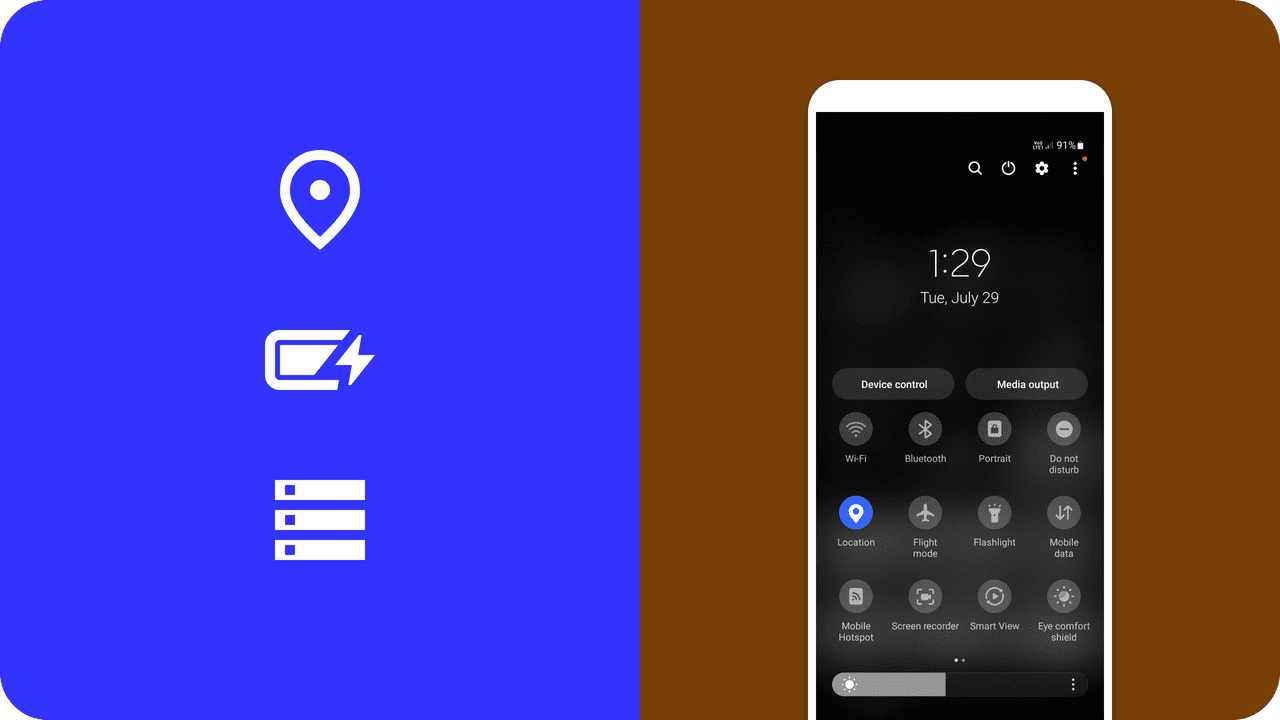
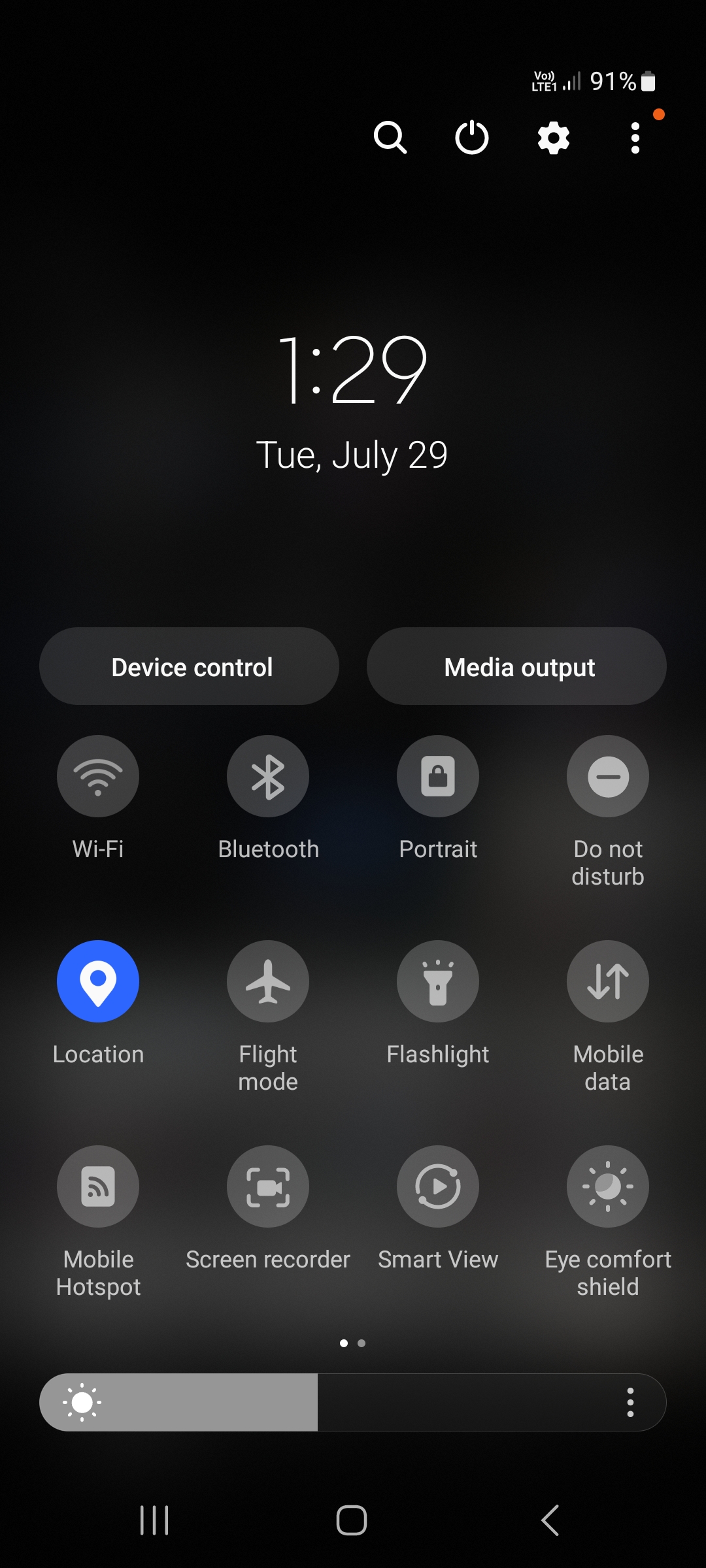
Make sure your Location / GPS is turned on on your phone. You can usually find this in the quickfind menu, located by pulling down from the top of the screen.
✅ Check Battery life: To optimize battery life during data collection use flight mode. If possible bring an external battery pack and phone charging cable to recharge whilst in the field. Also try and make sure that other apps are not running in the background, draining your battery.
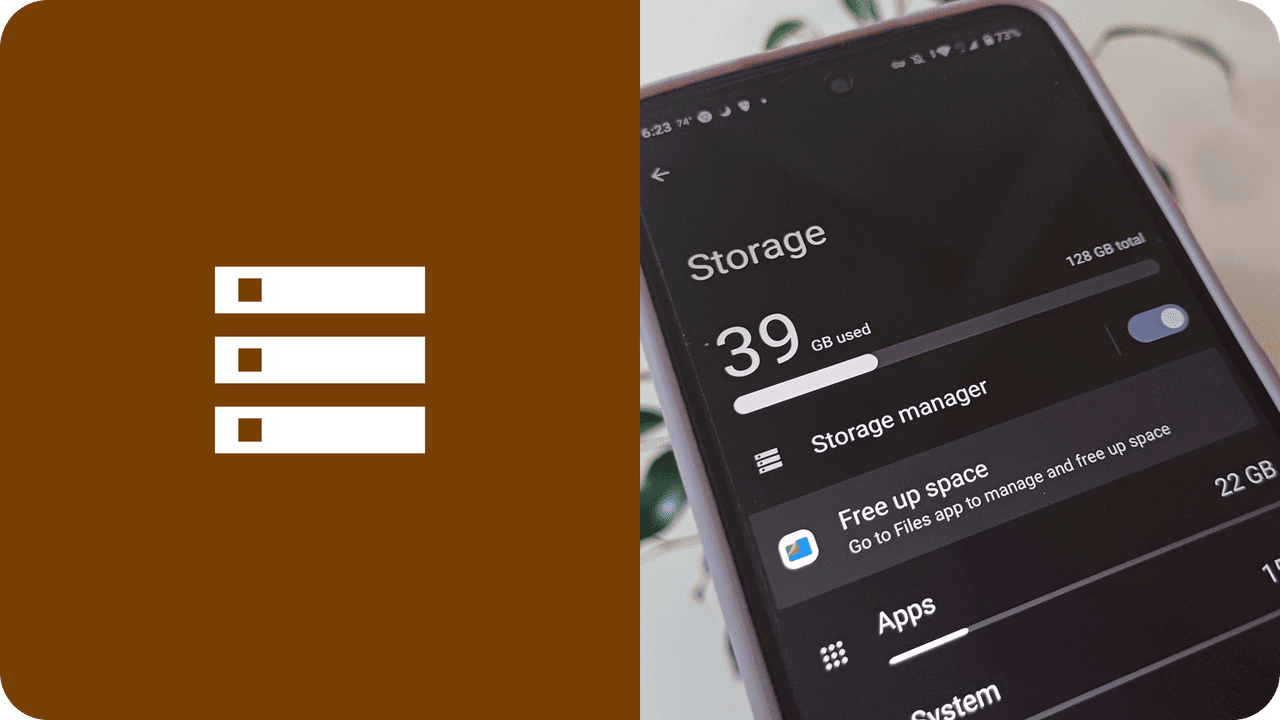
✅ Manage and maintain storage CoMapeo isn’t a large app, and the observation data (GPS coordinates and notes) don’t take up very much space. However if you start taking lots of photographs, or recording audio, these can begin to fill up your memory.
-
Manage your storage use by deleting unwanted apps within Settings > Apps > Sort by "Last used" or "Size".
-
If there are a lot of photos and videos in your phone gallery, consider moving them to a different media storage device.
Good maintenance procedures for your phones
-
Make sure you have a strong PIN, pattern, or fingerprint to open the screen - to keep CoMapeo data safe if you lose your phone, or it falls into the wrong hands.
-
You can also secure access to CoMapeo by setting an app passcode: see Working with an App Passcode
Step 1: Go to Settings
Step 2: Tap on Software Update

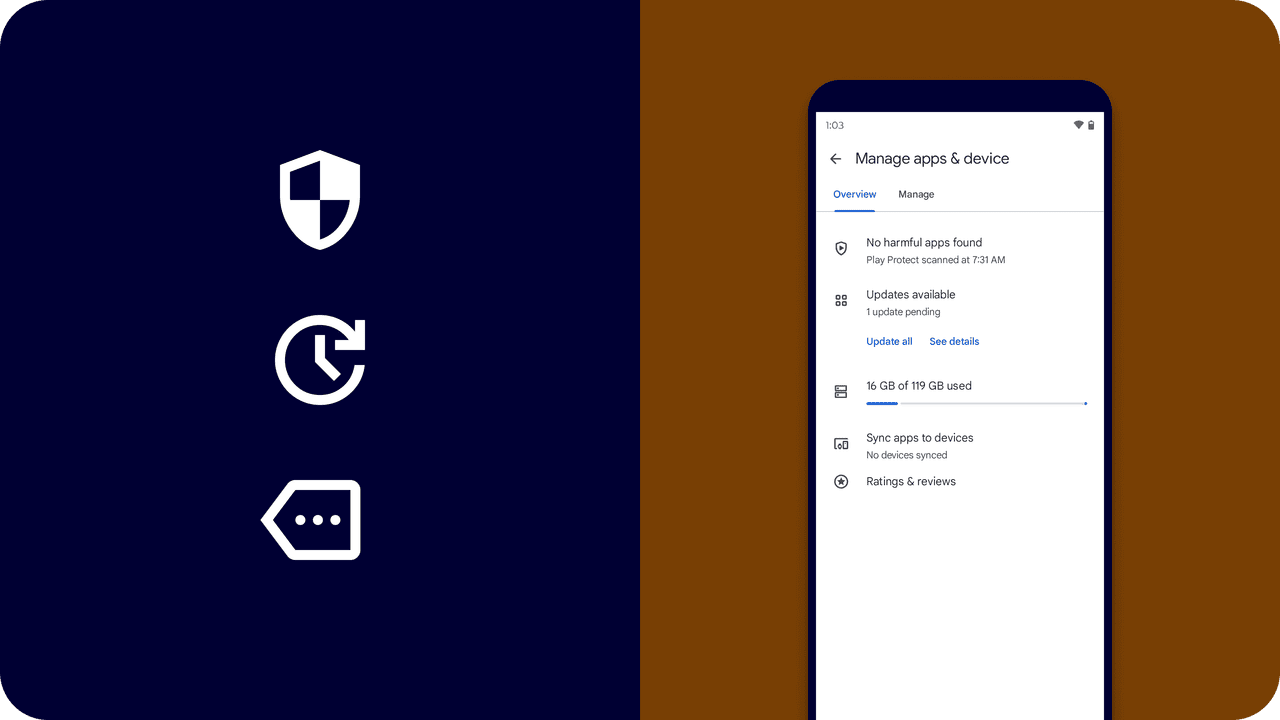
Step 1: Open Google Play Store
Step 2: Open main menu (Google profile picture)
Step 3: Select Manage apps and devices

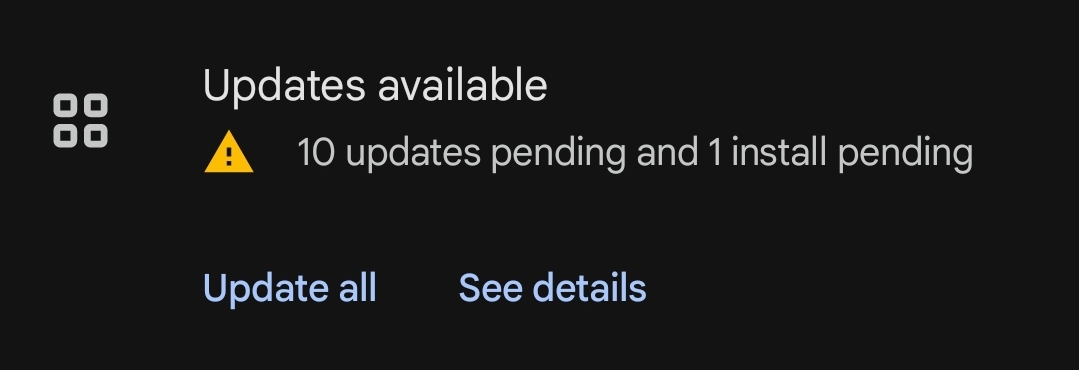
Step 4: Select a prefered update setting. If you have good internet access, select “Update all”. If you have limited internet access, select “See details” to manually update specific apps you use regularly. Remember to select CoMapeo.
👀 Practice a regular maintenance routine ✔️ Reboot / Restart your phone
✔️ Run a malware scan
✔️ Check your storage
✔️ Check you battery usage
Protect your phone against physical damage
Smartphone cases.
Choose a case that offers protection from exposure to water, accidental drops, and general abrasion. Adding a screen protector is recommended
Weather and Climate Considerations.
Common experiences of using smartphone in high exposure environments
- High heat → Device overheats and shuts off
- Extreme cold → Accelerated battery drain
- High Humidity → Accelerated corrosion of device parts, especially charging ports
- Rain → Moisture may seep in ports affecting charging ports and in severe cases the chipsets inside the device
Examine CoMapeo Mobile on Android
To learn about the space and permissions being used by CoMapeo, open the App Management screen for CoMapeo Mobile
Android Setting → App Management → CoMapeo
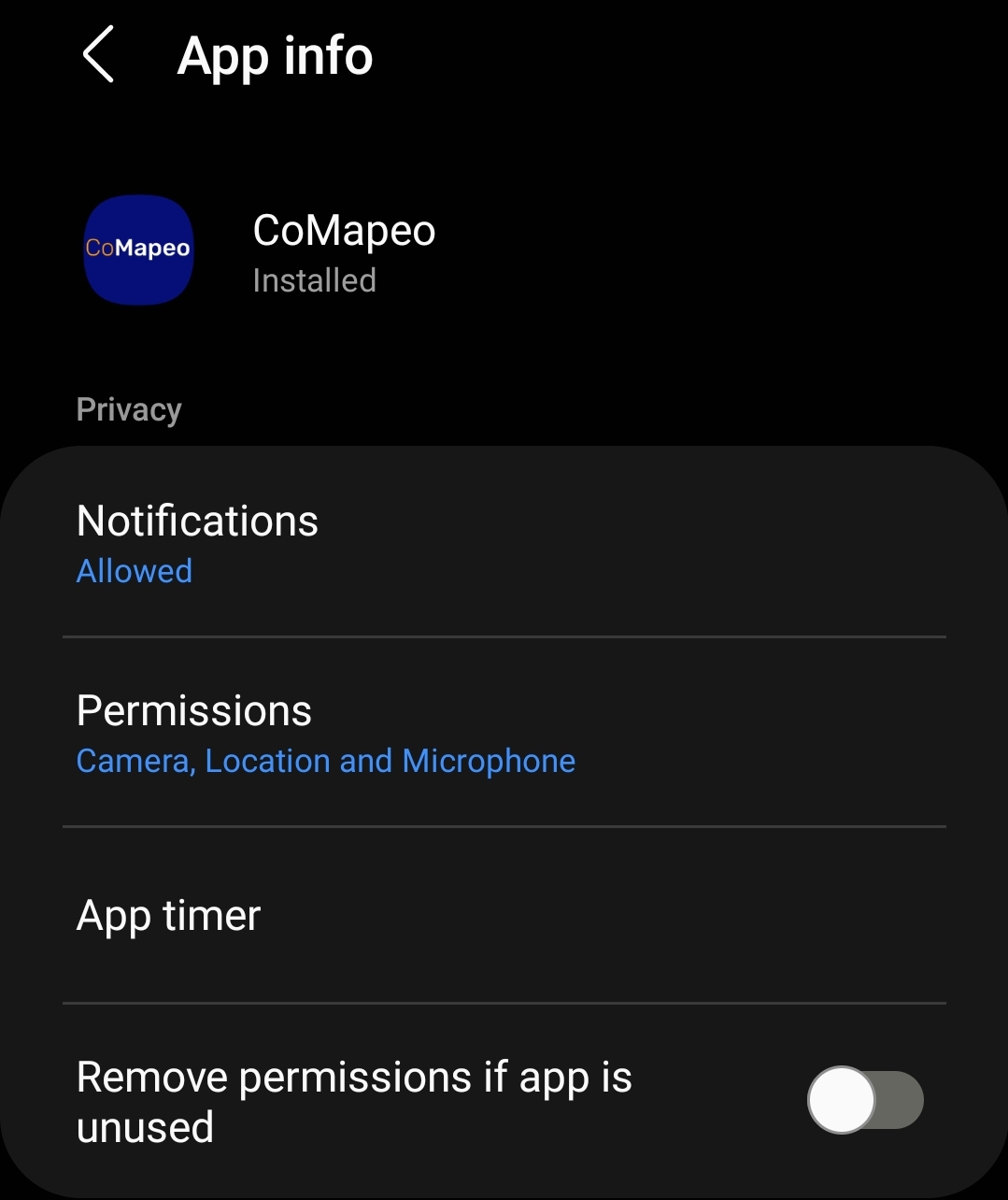
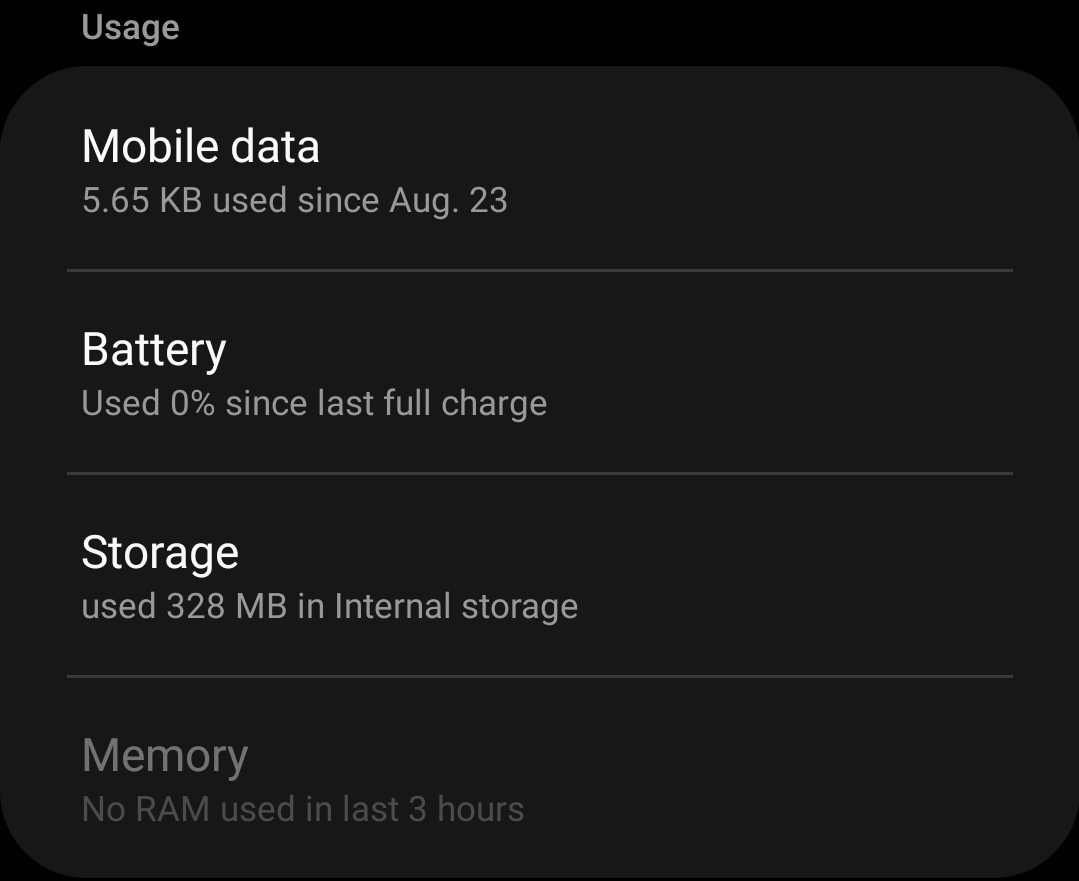
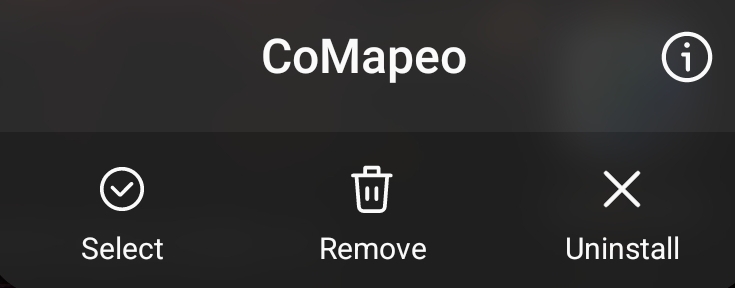
💡 Tip: If CoMapeo is on the homescreen, long press CoMapeo app icons to open app options. Select
information to jump to the App Management screen for CoMapeo Mobile
Related Content
Go to 🔗 Installing CoMapeo & Onboarding