Creating a New Project
🚧 Coming soon - More information
Creating a New Project
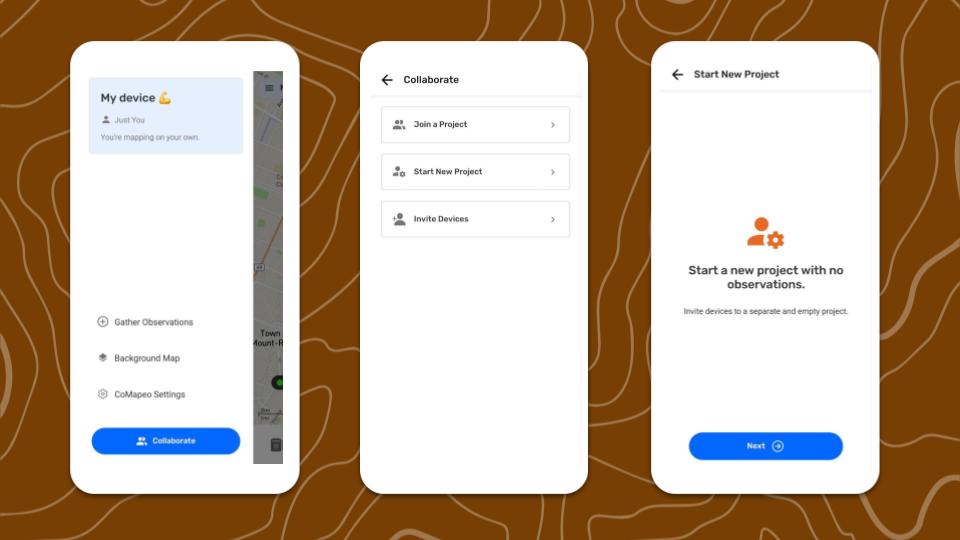
Starting a New Project
In the case where you want to share any observations from My Solo Project, but would rather collaborate with another device on a separate project, then Start a New Project.
👣 Step by Step
Step 1: Go to the
Menu.
Step 2: Tap on
Collaborate.
Step 3: Select
Start New Project.
Step 4: Add a project name and continue
Step 5: Select a Project Statistics option. This can be changed in Coordinator Tools
Step 5: Your new project is ready!
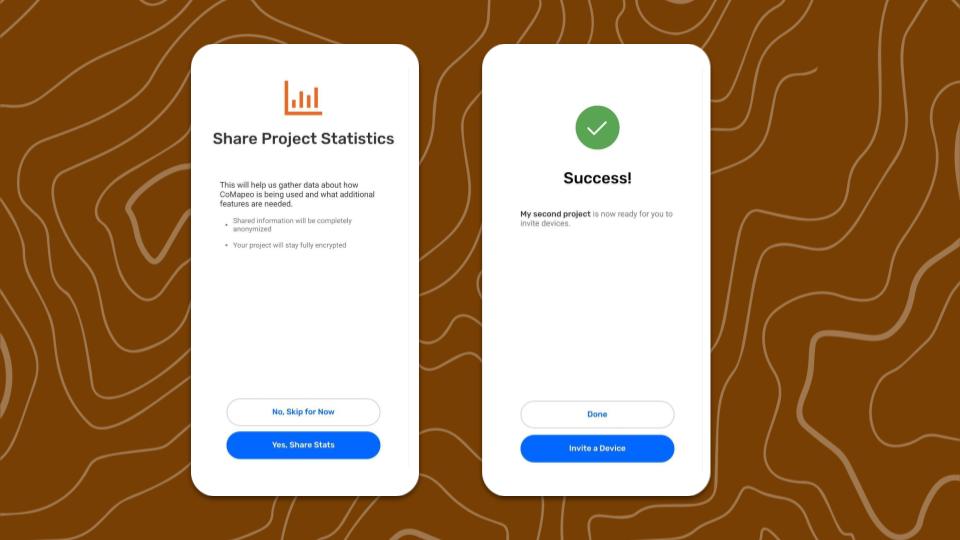
The project that you started when first onboarding onto CoMapeo will still be available go back to
Go to 🔗 Inviting Collaborators for instructions
Coordinator tools
 Project info
- Name
- Description - A description can be added to articulate the project purpose or objectives for all teammates to refer to as needed
- Color
 Remote Archive
Optional tool to use a local server as a backup
Go to 🔗 Using a Remote Archive
 Project Categories
Displays details for current Categories Set
Go to 🔗 Changing Categories Set
Project Statistics
Related Content
Go to 🔗 Planning and Preparing for a Project
Go to 🔗 Managing a team to learn about making your project collaborative
Go to 🔗 Understanding How Exchange Works for full explanation